Table of Contents
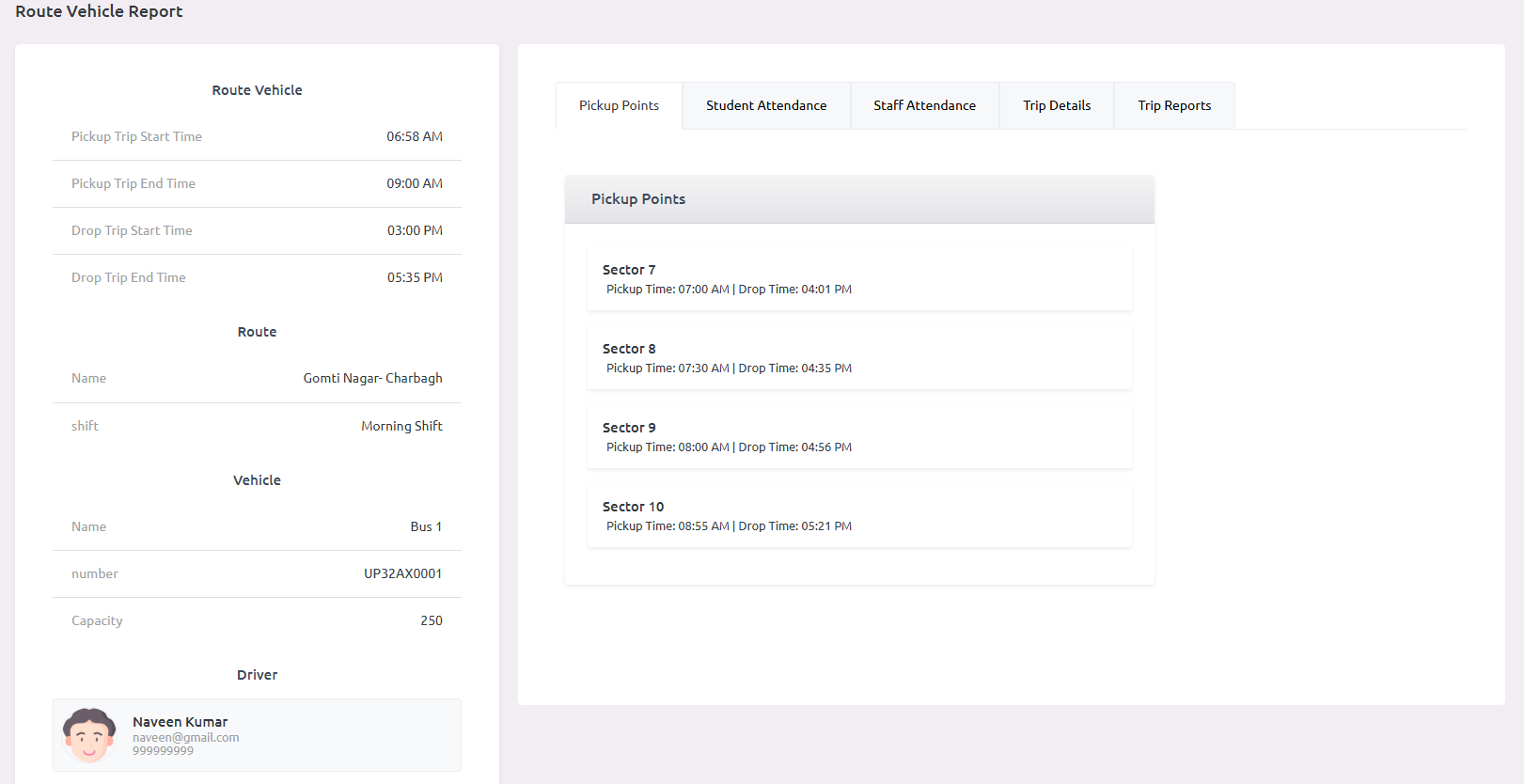
Assign vehicles, drivers, and helpers to specific routes with pickup and drop shift timings.
Route Vehicle Management Features: #
- 🔗 Link routes with vehicles efficiently
- 👨✈️ Assign dedicated drivers and helpers to routes
- 🕐 Set precise pickup and drop shift timings
- 👁️ View complete route assignments at a glance
- 🔄 Manage multiple shifts for the same route
- ✏️ Update assignments as needed
- 📊 Track vehicle utilization across routes
How to Assign Route Vehicles: #
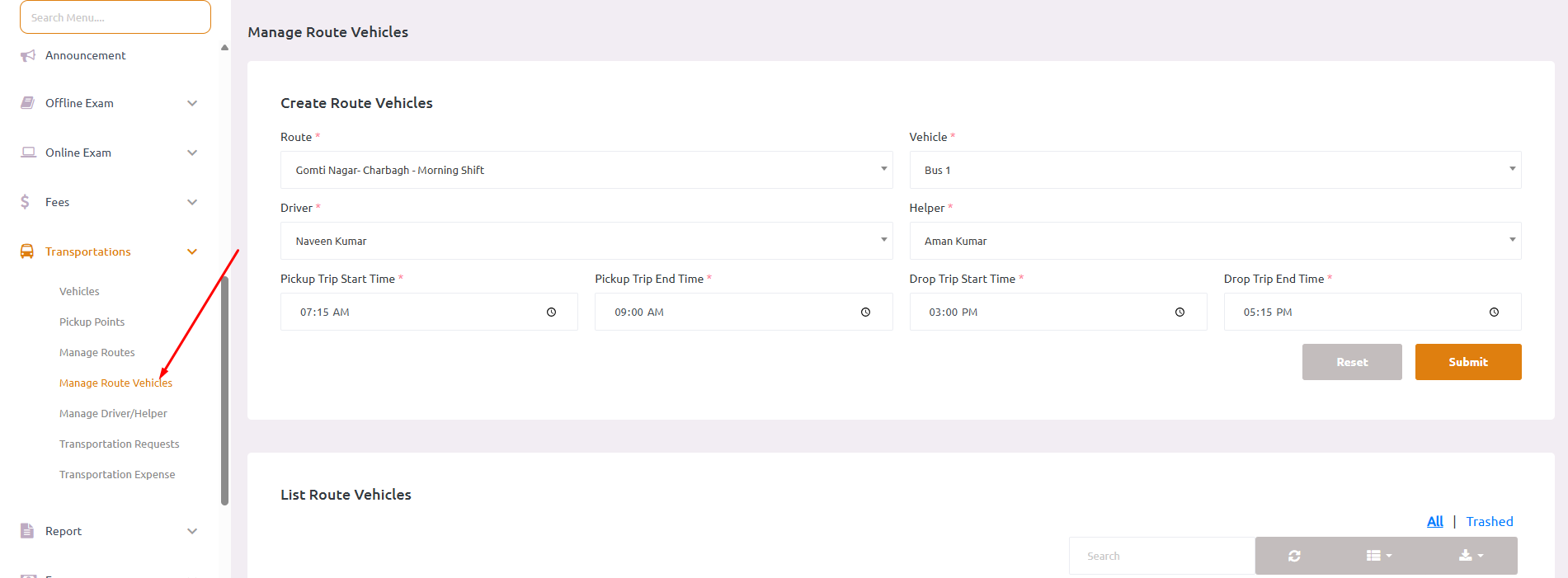
- Navigate to Transportations > Manage Route Vehicles
- Click on Create Route Vehicles
- Select route details:
- Route: Choose the route from the dropdown.
- Vehicle: Select the vehicle to assign to this route
- Assign staff:
- Driver: Select the driver for this route
- Helper: Select the helper/assistant for this route
- Set timing details:
- Pickup Trip Start Time: Set when the pickup trip begins (e.g., “08:16 AM”)
- Pickup Trip End Time: Set when the pickup trip ends (e.g., “09:49 AM”)
- Drop Trip Start Time: Set when the drop trip begins (e.g., “02:26 PM”)
- Drop Trip End Time: Set when the drop trip ends (e.g., “01:49 PM”)
- Click Submit to save the route vehicle assignment
List Route Vehicles: #
After creating route vehicles, view them in the comprehensive list showing:
- Route: Route name and shift (e.g., “Gomti Nagar- Charbagh – Morning Shift”)
- Vehicle: Assigned vehicle (e.g., “Bus 1”)
- Driver: Driver profile with photo and name (e.g., “Naveen Kumar”)
- Helper: Helper profile with photo and name (e.g., “Aman Kumar”)
- Status: Active or Inactive
- Action: Edit or delete assignments